How to Edit Videos Like a Pro Without Breaking the Bank
4 March 2026
Let’s get real – we all dream of producing jaw-dropping videos that look like they came straight out of a Hollywood studio. But then reality hits: editing software can be expensive, tricky to master, and time-consuming. Not to mention the pressure of keeping up with trends, transitions, and that oh-so-perfect color grading!
But guess what? You don’t need to empty your wallet or earn a film degree to edit like a pro. Whether you're a content creator, marketer, small business owner, or hobbyist who wants to spice up vacation videos—this guide is your golden ticket. We’re going to dive into how you can create slick, professional-quality videos without burning a hole in your pocket.
Grab your popcorn (or your editing mouse), and let’s get into it 🎬
📹 First Things First: What Does “Editing Like a Pro” Even Mean?
Before you start downloading tools and watching tutorials, take a moment to think about what “editing like a pro” looks like. Is it smooth transitions? Eye-catching text? Killer audio? Professional editing isn’t just about the bells and whistles—it’s really about storytelling.If your video flows naturally, keeps viewers engaged, and delivers its message crystal-clear, you’re already winning. High-end visuals are just the icing on the cake.
💻 Choose Affordable (or FREE!) Editing Software That Packs a Punch
You don’t need Adobe Premiere Pro or Final Cut Pro to create top-notch videos. There are plenty of budget-friendly (and even free) alternatives out there that get the job done beautifully.🧑💻 Free Video Editing Tools You Can’t Ignore
- DaVinci Resolve (Free Version): This is a beast! You get color correction, visual effects, audio post-processing, and more. It’s used by pros, but the learning curve isn’t too steep for beginners.- HitFilm Express: Another free powerhouse that includes VFX tools. Great for YouTubers and creative projects.
- Lightworks: A non-linear editor with a slick interface and lots of pro tools. It’s been used in actual movie editing!
- iMovie (Mac only): Simple, drag-and-drop interface, and perfect for quick, polished videos.
💸 Budget-Friendly Paid Options
- Filmora: Super user-friendly and loaded with features for under $100 (with lifetime license).- Camtasia: Ideal for screen recordings, tutorials, and business use. Pricey, but a one-time investment.
- Adobe Premiere Elements: A simplified version of Premiere Pro, great for those just dipping their toes in.
👉 Choose your weapon based on your needs — not the hype. You don’t need to use what everyone else is using to be awesome.
🎬 Structure Your Video Like a Story
Even if you’re editing a tech tutorial or a product demo, you still need a narrative arc — beginning, middle, end. Editing is where this structure really comes to life.✅ Basic Story Arc for Any Kind of Video:
1. Hook – Grab attention in the first 5–10 seconds.2. Intro – Who you are, what the video is about.
3. The Meat – Your actual content.
4. Wrap It Up – CTA (call to action), summary, or shout-out.
Break long takes into bite-sized clips, trim the fat, and keep it engaging. Think of editing like cooking: no one wants raw ingredients. Your job is to season, chop, and plate that masterpiece.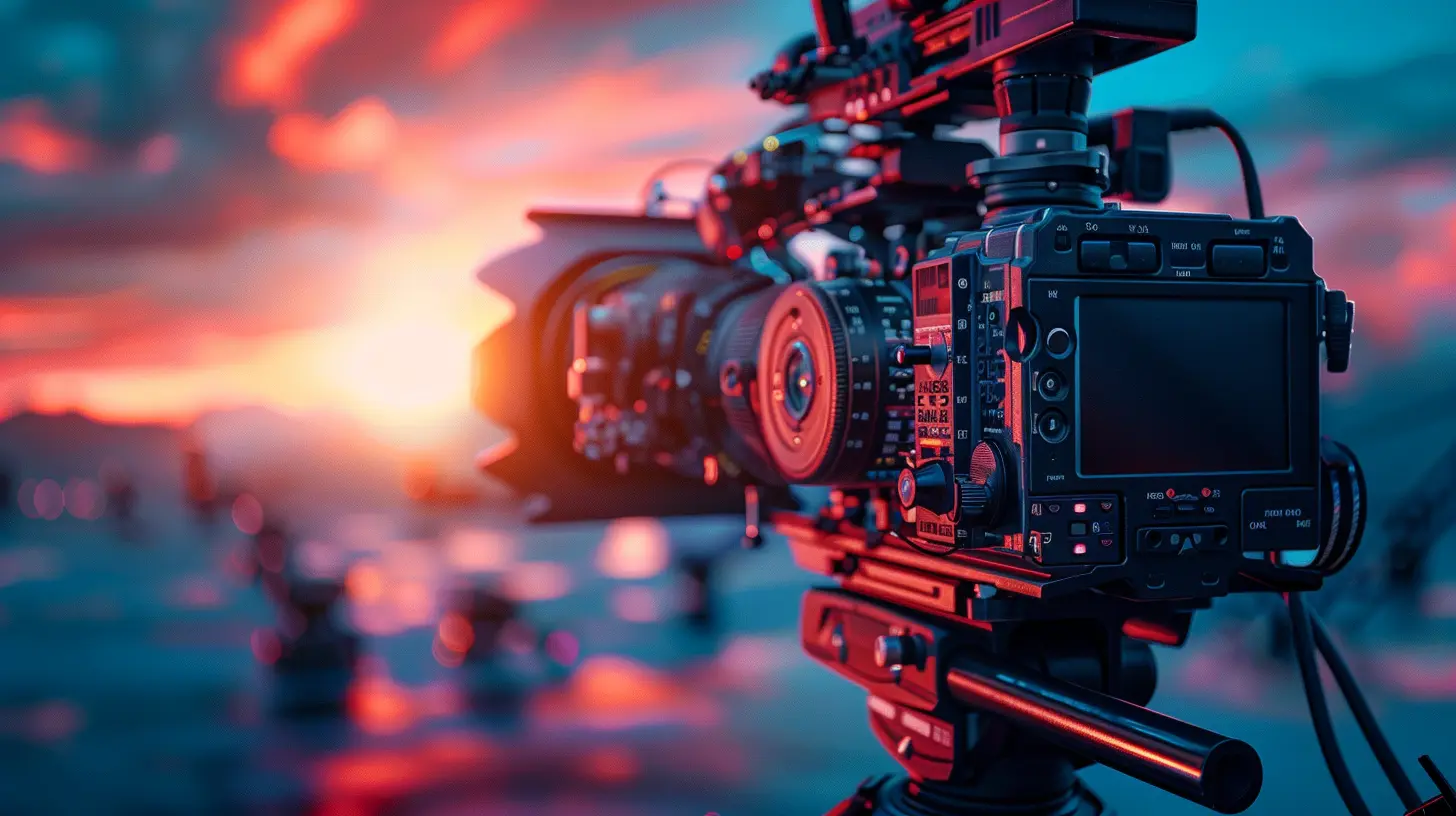
🎨 Color Correct and Color Grade Like a Boss
Here’s where you go from “meh” to “marvelous.” Color correction fixes any lighting or exposure issues. Color grading creates a mood. Even free editors like DaVinci Resolve give you powerful control over this.Simple Tips:
- Use auto-correct tools if you're a beginner.- Add LUTs (look-up tables) to give your video a pre-styled look. Some are free. Others cost a few bucks.
- Keep consistency across shots — don't let one clip look like it’s shot at sunset and the next at high noon (unless that’s your goal!).
A little bit of color love can make your video feel like a Netflix original!
🎵 The Power of Sound: Music and Effects
You can have the most stunning visuals, but if your audio sucks—trust me—it’s game over. People will forgive bad video, but not bad sound.📢 Audio Must-Do’s:
- Use royalty-free music: Websites like YouTube Audio Library, Epidemic Sound, and Artlist have tons of high-quality tracks.- Balance your levels: Make sure background music doesn’t drown out your voice.
- Noise reduction: Filter out background hums or clicks. Most editors have built-in tools for this.
- Sound effects matter: Add subtle whooshes for transitions or dings for text pop-ups to add life.
Remember, audio isn't an afterthought—it's half the experience!
✂️ Transitions, Text, and Effects – Be Subtle, Be Smart
It’s tempting to throw in every cool transition and explosion effect you can find. Resist the urge! Pro editing is about enhancing the story, not distracting from it.🎯 Some Keep-It-Classy Tips:
- Stick to 2–3 transition styles per video.- Use simple fades and cuts unless the content calls for drama.
- Drop animations or text when it adds value — like emphasizing a key point or calling attention to a website link.
Less is more. Think of transitions and effects like seasoning. Just enough improves the dish. Too much ruins it.
🎯 Add Captions and Subtitles – Accessibility + Engagement FTW
Did you know a large chunk of people watch videos with the sound off? Yep. Captions aren’t just great for accessibility—they help increase watch time and engagement.Use tools like:
- YouTube’s automatic captioning (then edit for accuracy)
- Kapwing or VEED.IO for stylish text animations
- Descript (bonus: it auto-generates a transcript!)
Plus, captions help with SEO. Google loves accessible content.
📈 Use Templates and Presets to Save Time and Look Pro
Why reinvent the wheel? Use templates to speed things up and make your videos look sleek.Great Sources for Templates:
- Envato Elements- Motion Array
- Canva Video Templates
- Mixkit (Free)
Whether it’s intros, lower-thirds, or transitions, templates are lifesavers. They’re like the IKEA of video editing—just plug and play.
🔄 Batch Editing = Big Time Saver
If you’re editing for a business, social media page, or YouTube channel, chances are you need multiple videos. Here’s where batch-editing can be a game changer.Workflow Hacks:
- Create a uniform template for intros/outros.- Save commonly used transitions or color grades.
- Duplicate timelines for similar content (e.g., weekly vlogs).
- Use naming conventions for footage to keep organized.
Less time editing = more time creating (or napping, we won’t judge).
🧠 Learn From Others – For Free!
Hang out on YouTube long enough and you’ll realize it’s the best (free!) video editing school out there. Creators like Justin Brown from Primal Video, Premiere Gal, and Peter McKinnon regularly drop golden nuggets that can seriously level up your editing game.Want to go a step further?
- Join Reddit communities like r/VideoEditing- Follow creators on Twitter/X and Instagram for behind-the-scenes tips
- Take free (or cheap) courses on platforms like Skillshare or Udemy
Surround yourself with people who geek out over editing and absorb every trick like a sponge.
🙌 Keep Practicing – Progress Over Perfection
Real talk: your first edit might suck. That’s okay. Editing is an art AND a science. Like learning to play the guitar or ride a bike, it takes reps.Here’s some encouragement: the more you edit, the faster and better you'll get. What took you five hours will soon take you one. You’ll develop a style. You’ll learn shortcuts. You’ll stop freaking out when software crashes (okay, maybe not that last one).
Stay curious, keep experimenting, and don’t forget to have fun!
💡 Bonus: Affordable Gear That Helps (But Isn’t Required)
While you can totally edit pro-level videos on a laptop and your phone, here’s a list of gear that can add some extra polish without crushing your bank account.| 💾 Gear | 💰 Budget Price | 🚀 Why It Helps |
|--------|------------------|----------------|
| External Microphone | $20 - $80 | Better audio quality, always |
| Ring Light | $15 - $30 | Bright, even lighting |
| Gimbal or Stabilizer | $70 - $150 | Smooth shots, handheld |
| Portable SSD | $50 - $120 | Faster editing speeds |
| Screen Recorder | Free - $50 | Perfect for tutorials & gameplay |
Remember: Tools help, but skills win the game.
🎉 Final Thoughts: You’re Closer Than You Think
You don't need to drop thousands of dollars or get a film degree to make amazing videos. With the right mindset, tools, and a bit of patience, you can absolutely edit like a pro — without breaking the bank.Editing is like magic. It breathes life into your raw footage. It turns your ideas into stories. And now, armed with these tools, tips, and tricks, you've got everything you need to work that magic.
So go ahead—open up that editor, channel your inner Spielberg, and hit that export button with pride. The world’s waiting for your masterpiece!
all images in this post were generated using AI tools
Category:
Video Editing ToolsAuthor:

Reese McQuillan
Discussion
rate this article
2 comments
Porter Wheeler
Can these tips really elevate my editing skills?
March 6, 2026 at 4:01 AM
Reese McQuillan
Absolutely! These tips can make a real difference in your editing skills without costing you a fortune. Give them a try!
Nicole McElveen
This article offers valuable insights for aspiring video editors on a budget. The tips highlighted—particularly the emphasis on free software and accessible resources—are practical and empowering. It’s refreshing to see a focus on creativity over expensive tools. I'm excited to try these techniques and elevate my editing skills without overspending!
March 5, 2026 at 4:52 AM
Reese McQuillan
Thanks for your thoughts! I'm glad you found the tips helpful. Best of luck with your editing journey!