How to Use Your Smart Display for Home Automation Control
2 April 2026
Let’s be real—we all want our homes to run like a well-oiled machine, without us having to lift a finger. That’s where smart displays come in. If you’re already rocking one in your kitchen, living room, or bedroom, you’re sitting on a mini command center that can do way more than tell you the weather or play your favorite playlist. In this guide, we’re diving deep into how to use your smart display for home automation control. Buckle up—it’s about to get smart in here.
What Is a Smart Display, Really?
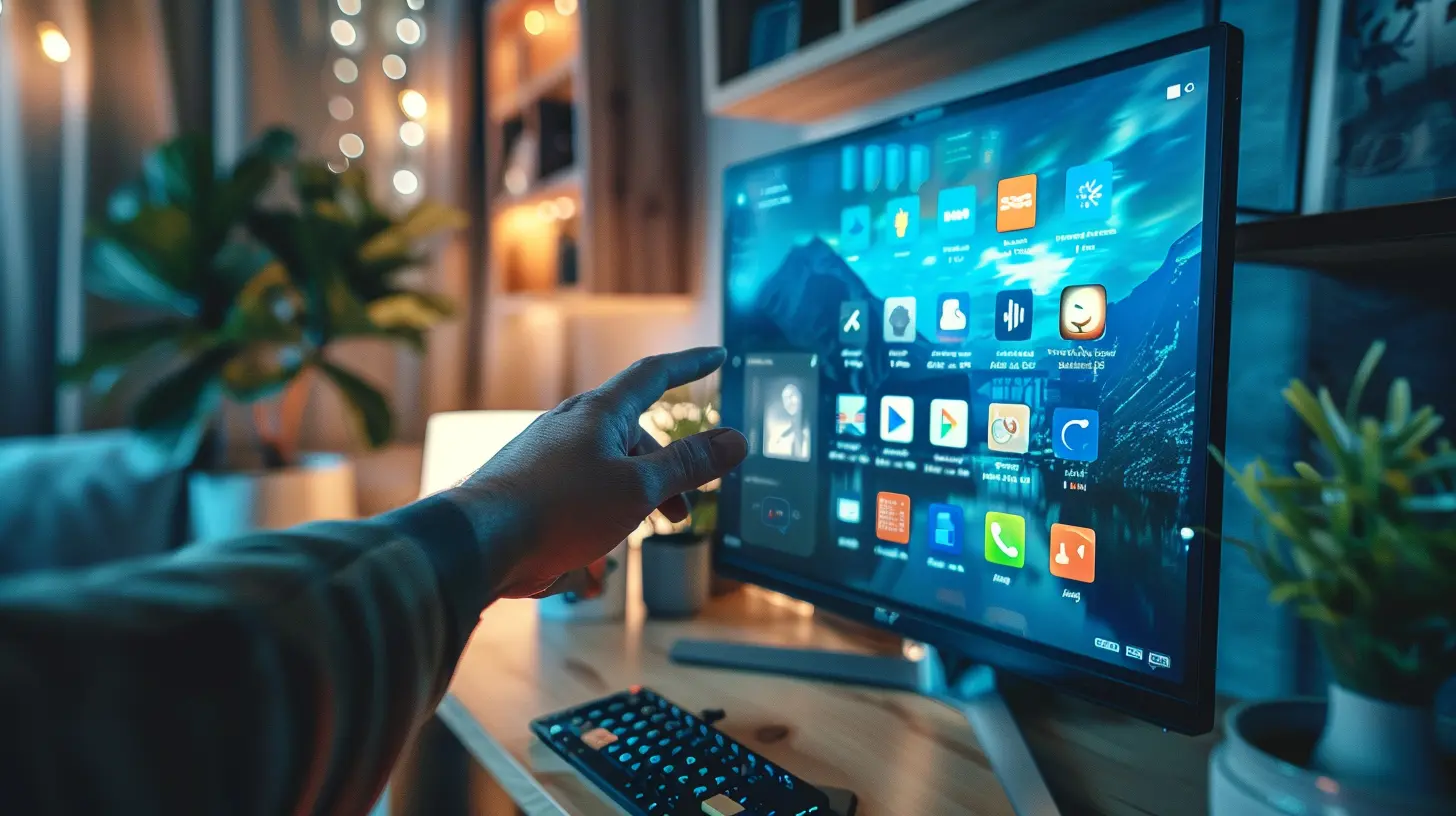
Before we jump into the whole “home automation domination” part, let’s take a step back. What is a smart display exactly?Think of it as the love child of a smart speaker and a tablet. It features a screen, voice assistant support (like Alexa, Google Assistant, or Siri), and a slick interface that lets you control your smart home with both voice commands and touch gestures. Brands like Google Nest Hub, Amazon Echo Show, and Lenovo Smart Display are leading the pack here.
But unlike a standard smart speaker, a smart display takes things to the next level. Visual feedback? Check. Security camera views? Yup. Interactive controls for lights, thermostats, and door locks? Absolutely.
Why Use a Smart Display for Home Automation?
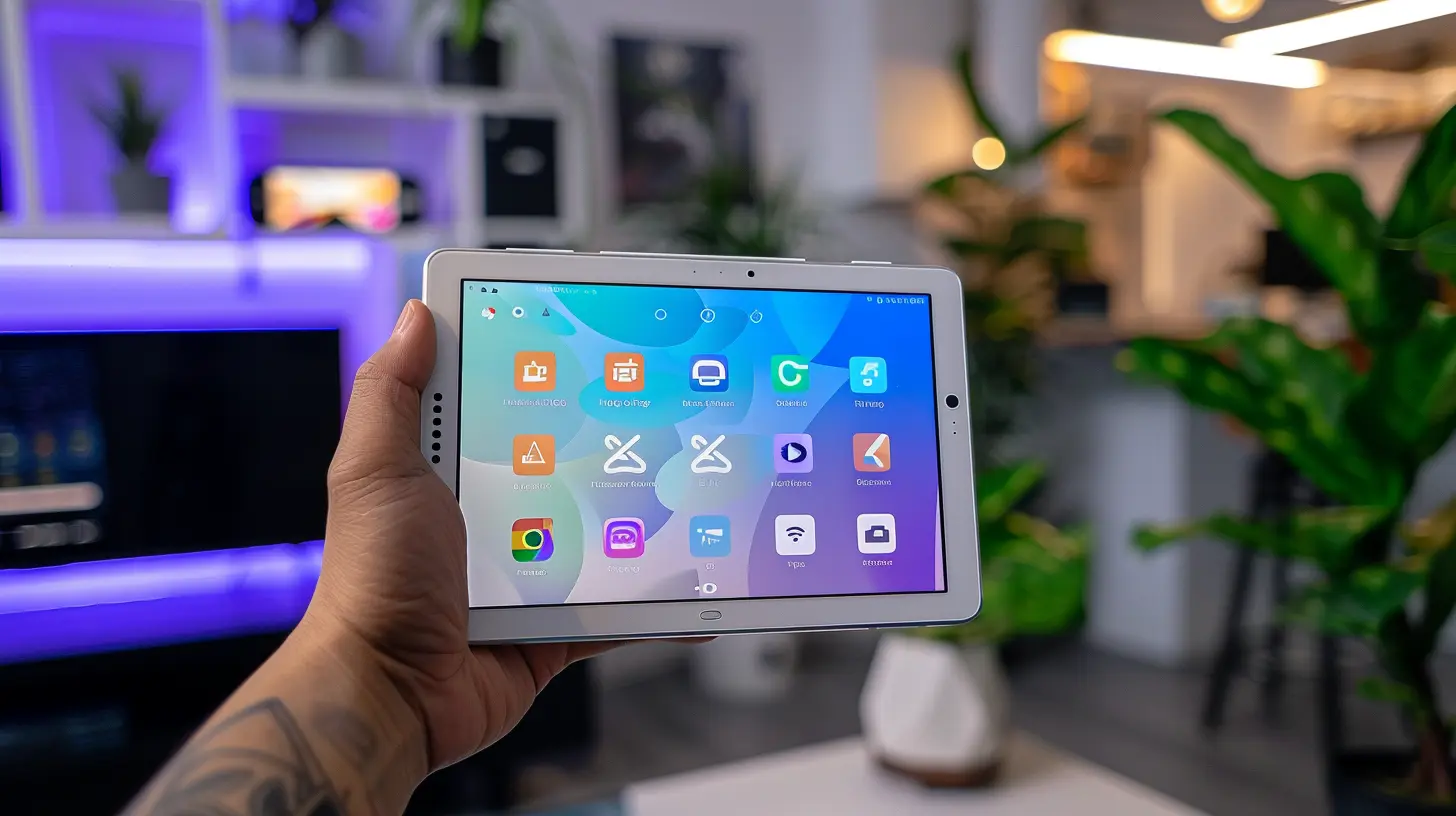
You might be wondering—why not just use my phone or a smart speaker?Great question. While smartphones are portable and smart speakers are convenient, smart displays hit the sweet spot in-between. You get instant control, hands-free operation, and a clear visual layout of your entire smart home setup—all in one place.
Still need convincing? Here are a few reasons to make the switch:
- Central control hub: Everything’s in one place.
- Visual interface: Easier to navigate than voice-only devices.
- Voice + touch control: Use whichever suits your mood.
- Live camera feeds: Keep an eye on things without switching devices.
- Multi-room control: Check and manage devices across different areas of your house.
Now that we’ve set the stage, let’s roll up our sleeves and get into the action.
Step 1: Set Up Your Smart Display
Before it can run your house, your smart display needs a little TLC.1.1 Connect to Wi-Fi
Super basic, but non-negotiable. Without Wi-Fi, your display is just an expensive clock. Make sure it's connected to a stable network. Preferably the same one your other smart devices are on.1.2 Log Into the Companion App
Depending on the brand you're using, you'll need either:- Google Home app (for Nest Hubs)
- Amazon Alexa app (for Echo Shows)
- Apple Home app (for Apple HomePod with display, when it's available)
This is where all the backend magic happens—adding devices, creating rooms, renaming gadgets, and linking services.
1.3 Link Your Smart Devices
Here’s where the plot thickens. You’ll need to connect each smart device—light bulbs, smart plugs, thermostats, cameras, what-have-you—to your smart display through the app. Some devices require a skill (in the case of Alexa) or a service link (for Google Assistant).Pro tip: Rename your devices in the app to something easy. Instead of “TP-Link Smart Plug 128,” go with “Coffee Maker.” Trust me, future-you will thank you.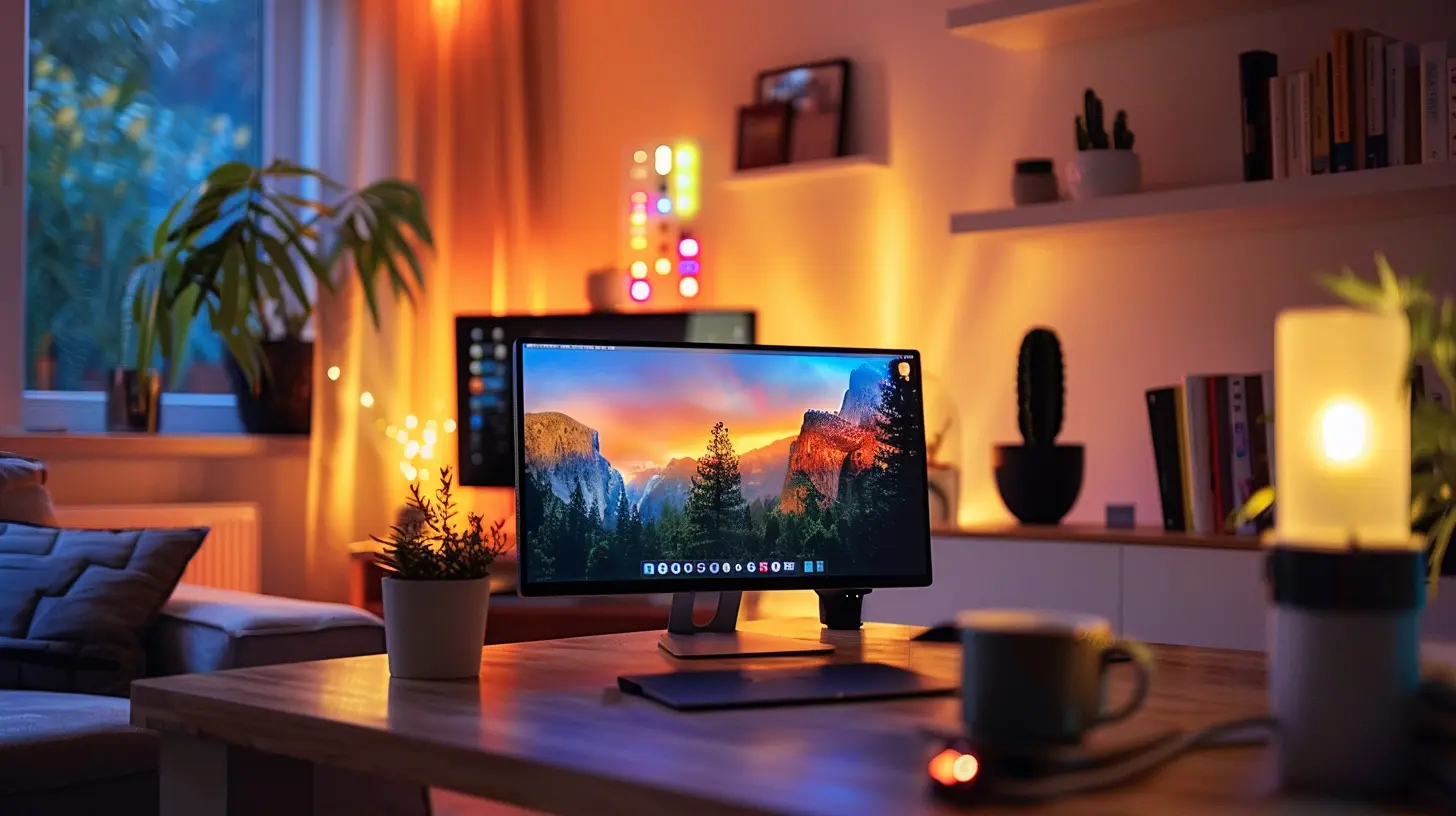
Step 2: Create a Smart Home Ecosystem
A smart display is only as smart as the devices it connects to. Here’s how to build your own ecosystem:2.1 Choose Compatible Devices
Check compatibility before buying. Not all smart devices play nice with every platform. Stick with known brands like:- Philips Hue for lighting
- Nest, Ecobee, or Honeywell for thermostats
- August, Yale, or Schlage for smart locks
- Ring, Arlo, or Wyze for security cameras
2.2 Organize by Room
In the app, assign each device to a virtual room. This makes it easier to control multiple devices at once. Want to turn off all the lights downstairs? Just say the word.2.3 Group Devices
Take it up a notch with groups. Combine all your living room lights into one group. Same goes for speakers, plugs, even cameras. One tap or command can control them all.Step 3: Use Voice Commands Like a Pro
Here’s where the magic happens. With your display set up and devices linked, it’s time to talk to your house.3.1 Basic Commands
- “Hey Google, turn on the kitchen lights.”- “Alexa, set the thermostat to 72 degrees.”
- “Hey Siri, lock the front door.”
Simple, right?
3.2 Advanced Commands
Now let’s spice it up:- “Show me the front door camera.”
- “Dim the living room lights to 30%.”
- “Start the morning routine.”
Yep, your smart display can handle all that and more.
Step 4: Automate Your Routines and Scenes
You didn’t sign up for a smart home to keep repeating the same commands every day, did you? Let’s automate that!4.1 Morning Routine
Kick off your day like a boss:- Wake up to your favorite playlist
- Open smart blinds
- Turn on the coffee maker
- Get the day’s weather and traffic report
Just say, “Good morning,” and watch it all unfold.
4.2 Bedtime Scene
Wind down with a single phrase:- Turn off all lights
- Lock the doors
- Set thermostat to sleep mode
- Arm the security system
Say “Good night,” and the house tucks itself in.
4.3 Custom Scenes
Got a movie night tradition? Set a custom scene for it:- Dim lights
- Close curtains
- Turn on TV and sound system
- Popcorn optional (but highly recommended)
Step 5: Monitor Security and Cameras in Real Time
Smart displays shine when it comes to security. Instead of fiddling with your phone to check the porch or peek into the baby’s room, just say the word.5.1 View Live Camera Feeds
Ask your display to “show the front door,” and boom—there’s the feed. It’s like having your own private surveillance center.5.2 Talk Through Cameras
Some smart displays support two-way audio. Someone at the door? Use your smart display as an intercom. Sound like a sci-fi movie? Welcome to the future.5.3 Get Alerts and Notifications
Many smart displays can show motion or doorbell alerts right on the screen. That means fewer surprises—and more peace of mind.Step 6: Control Entertainment and Media
Home automation isn’t all serious business. Sometimes it’s about kicking back and enjoying the ride.6.1 Stream Music or Videos
Whether it’s Spotify in the kitchen or YouTube in the garage, your smart display can handle it. Ask it to play your favorite artist or podcast—or browse visually using the touchscreen.6.2 Cast to Your TV
Have a Chromecast or Fire TV? You can use the display as a remote. No more digging through couch cushions for lost remotes.6.3 Manage Multi-Room Audio
Pump the same song through every speaker in the house. Or keep rooms separate. Either way, you’re in control from a single device.Step 7: Use Visual Controls for Precision
Sometimes you don’t want to shout commands across the kitchen. That’s where the visuals come in.7.1 Touchscreen Menus
Swipe, tap, and scroll to manage devices room-by-room. Adjust brightness, change temperature, or turn things on/off with just your fingers.7.2 Dashboards and Control Panels
Most smart displays offer an at-a-glance view of your entire smart home. See which lights are on, what the current temperature is, or whether a door is unlocked.7.3 Real-Time Adjustments
Mid-way through dinner and realize the lights are blinding? Just slide the brightness down. Easy.Step 8: Go Beyond Basics with Smart Home Integrations
Want to get fancy? Connect your smart display with services like:- IFTTT: Create custom automations that respond to specific triggers.
- SmartThings: Samsung’s powerful hub with tons of integrations.
- Home Assistant or Hubitat: For advanced users who want full customization.
It’s like giving your smart home a graduate degree in automation.
Final Thoughts: Make It Work for You
At the end of the day, the best smart home is one that fits your lifestyle. Whether you’re a control freak or just want your coffee ready when you wake up, using a smart display puts the power—literally—at your fingertips (and on your lips).Play around. Experiment. And don’t be afraid to tweak things. Home automation should make life smoother, not more complicated. With a smart display, you’re the commander of your home spaceship—and it’s time to take off.
all images in this post were generated using AI tools
Category:
Smart DisplaysAuthor:

Reese McQuillan
Discussion
rate this article
2 comments
Xander Price
Smart displays streamline home automation, enhancing convenience and efficiency.
April 17, 2026 at 10:37 AM
Reese McQuillan
Absolutely, smart displays make managing your home easier and more efficient. It's all about convenience!
Enid Wilcox
Great insights! Smart displays truly enhance home automation, making everyday tasks so much simpler. Thank you!
April 10, 2026 at 3:12 AM
Reese McQuillan
Thank you for your kind words! I'm glad you found the insights helpful. Smart displays really do streamline home automation!